Mix Tool Help
Mix Tool is a frequency grapher I made to help me find where various sounds are clashing in a mix.
You can add and delete 'zones' of an instrument, mapped across the audible frequency range.
Create a zone by pressing '+ zone' and entering a string to name the zone. You can group zones by using the first word in the string as a tag, e.g. 'BD thump', 'BD click'.
Then enter or click 3 frequency values in Hz:
- The bass extent is the lowest frequency of the sound that makes up it's character. You can find it by sweeping a high pass filter up on the sound. When it starts sounding bad, sweep back a touch and that is your number.
- The center freq is where the sound has most of it's character. The frequency where the sound is most like itself.
- The treble extent is the highest frequency of the sound. You can find it in the way described above. If you have a spectrum analysis tool, you can get just read this info off it.
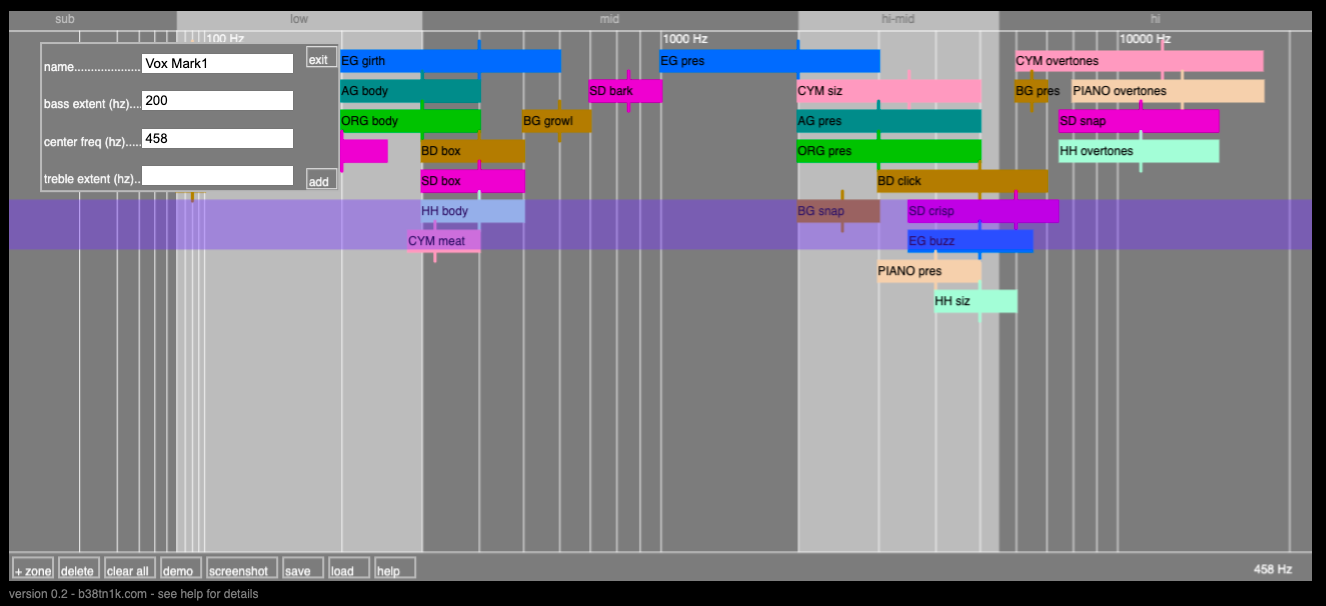
The Add button will only work if these values are all completed and in a logical order (low < center < high).
Add all the sounds of your track. When you see sounds starting to stack ontop of each other, you might want to pay attention to those overlaps as that's where mud and weird things can happen. And that is about the utility of this tool.
Tips and Shortcuts
- The ENTER key will open the + zone menu, or add a valid zone of the menu is already open
- You can use the mouse to define the bass extent,center freq, treble extent values. Press 'click'
- You can also use the TAB key to cycle through those inputs (SHIFT-TAB to go backwards)
- LEFT_ARROW and RIGHT_ARROW might help on smaller screens.
Compatibility
- Safari 14+
- Chrome v99+
- Mobile is a mixed bag
- Will not load in messenger-type temp browsers (FB Messenger Preview)
Small Screens
Small Screens make everything difficult. You can use the left and right arrow keys to scroll through the graph.
Saving and Loading
This is hosted (for free!) on GitHub Pages. So there is no backend, user profiles, uploading files, etc. So saving is a little bit weird.
When you click save, a save file is generated as a '.htm' webpage and downloaded to your computer.
To reopen that project, click on the '.htm' file and open it in a webbrowser. Copy the text to your clipboard and then paste it in the text input field provided in the load menu. It's a bit wonky but it works. Unless your save file is weird.
Notes
The demo map was copied from a useful poster over at Sweetwater.
If you use special characters for your instruments, saving and loading may not work.
DM me on twitter if you find anything wrong @B38TN1K